Archives

Miss Aniela “Barocco”

Miss Aniela’s recently completed “Barocco” project has been the culmination of two shoots: one on location, and the other in studio. The project takes inspiration from the Baroque and Rococo eras, creating a symphony between high-fashion and surrealism. Shooting in this particular style requires pristine attention to detail throughout. Here Miss Aniela shares her workflow on how she has achieved these images. “Whenever I shoot with the Phase One I tether to my iMac desktop at all times, the images always dropping smoothly into Capture One Pro 10. For easy organization, I create a new Session for each model look, shooting straight into the Capture folder, which later on I organize approved/rejects into Selects/Trash respectively. In the Library tab, I can then easily navigate to the Selects folder to work on my desired shots and batch-copy adjustments across any set of images to preview the desired effects, before hitting the ‘process’ button to output them as high-res 16-bit Tiffs in sRGB. From there, I simply open the Output folder in Adobe Bridge so I can take …

Editing Competition with Pratik Naik

We have teamed up with fashion retoucher Pratik Naik and photographer Bella Kotak for this month’s editing challenge. We invite all photographers – whatever your level of experience with Capture One Pro – to watch Pratik’s guide for inspiration and let your creativity shine! Show us what you can do and be in with the chance of winning a free Capture One Pro license. Learn more about the competition here and enter by 30th March! [THIS COMEPETITION HAS ENDED!] Pratik Naik is a high end retoucher specializing in commercial and editorial work. Bella Kotak is a world traveling fine art and fashion photographer based in Oxford & London, England. Working in the industry for over a decade, we have asked him some insights into his approach to retouching and editing. What do you focus on when retouching images? As a guide to retouching images, always focus on areas that you are distracted with. With this image, I would like you to focus mostly on emphasizing details and colors, over just finding flaws. Enhance what you want to bring attention to …

Fast-track Guide from Lightroom to Capture One Pro

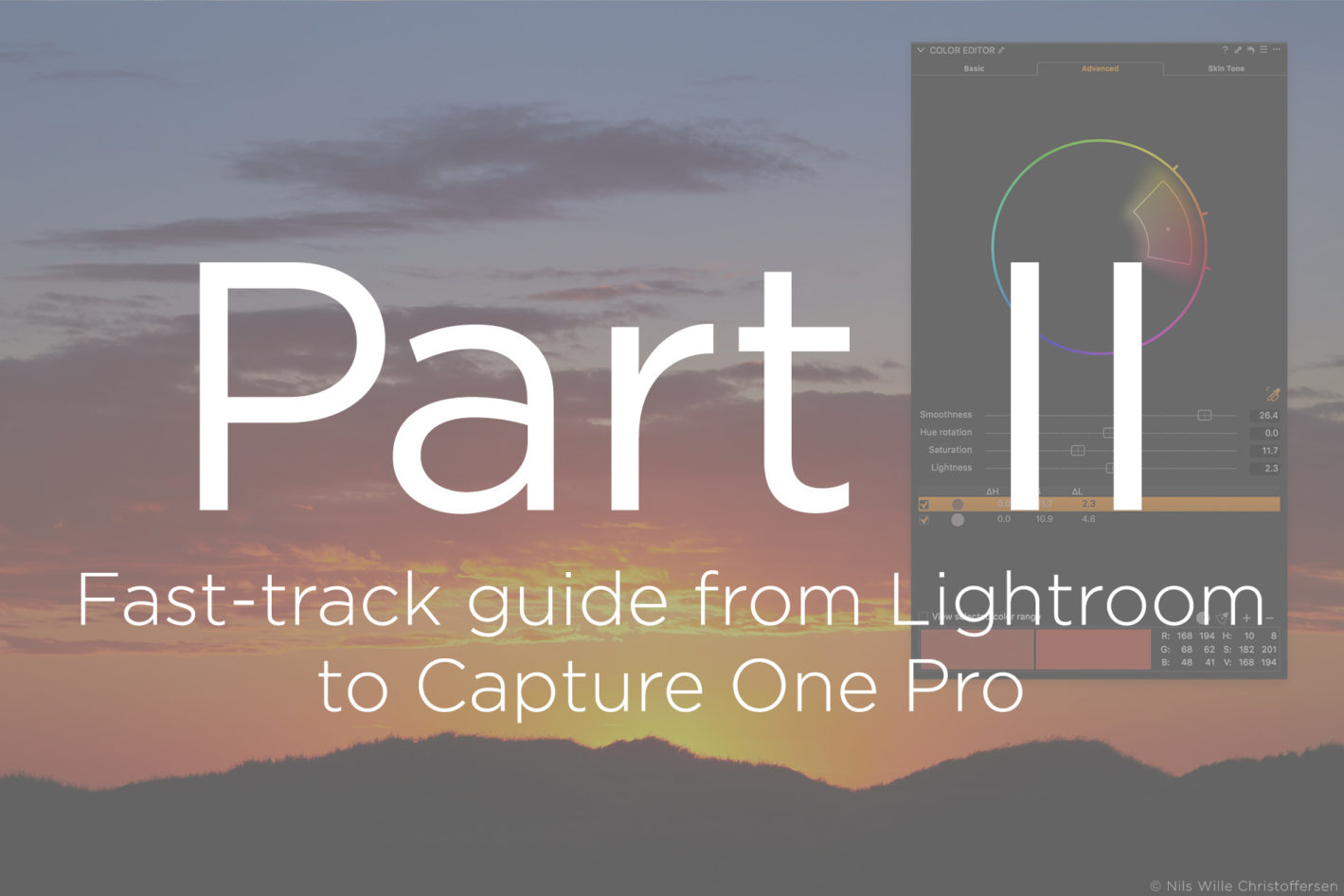
NOTE: This article discusses an outdated version of Capture One. To learn more about our latest version, click here. In this Part Two of the Fast-track Guide from Lightroom to Capture One Pro, we will look at the key differences between image editing features in the two programs. You will also get to know about some of the most powerful adjustment tools that Capture One Pro offers over Lightroom. Just like in Lightroom, all adjustments are done non-destructively on the image files, so there is no harm in experimenting with the many editing tools in Capture One Pro. You can always reset everything by selecting Adjustments > Reset, and if you need to reset just one Tool, click on the little icon with the arrow pointing to the left. With that out of the way, let us first look at the image adjustment tools that are familiar to those from the Basic panel in Lightroom. The Brightness slider works great when you want to brighten mostly the midtones. The sliders in Exposure Tool works like …