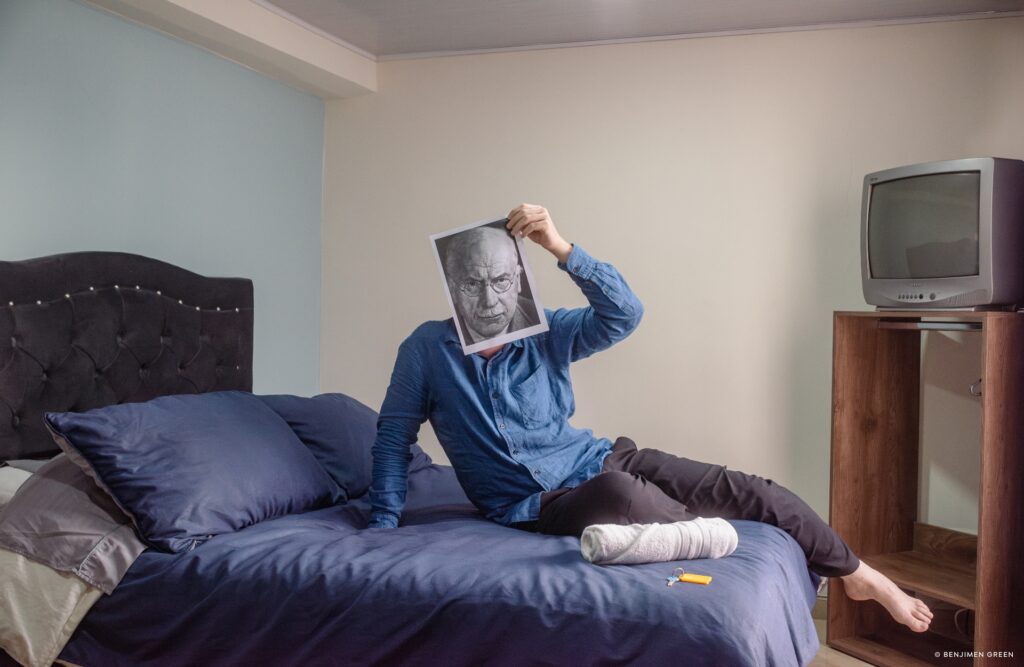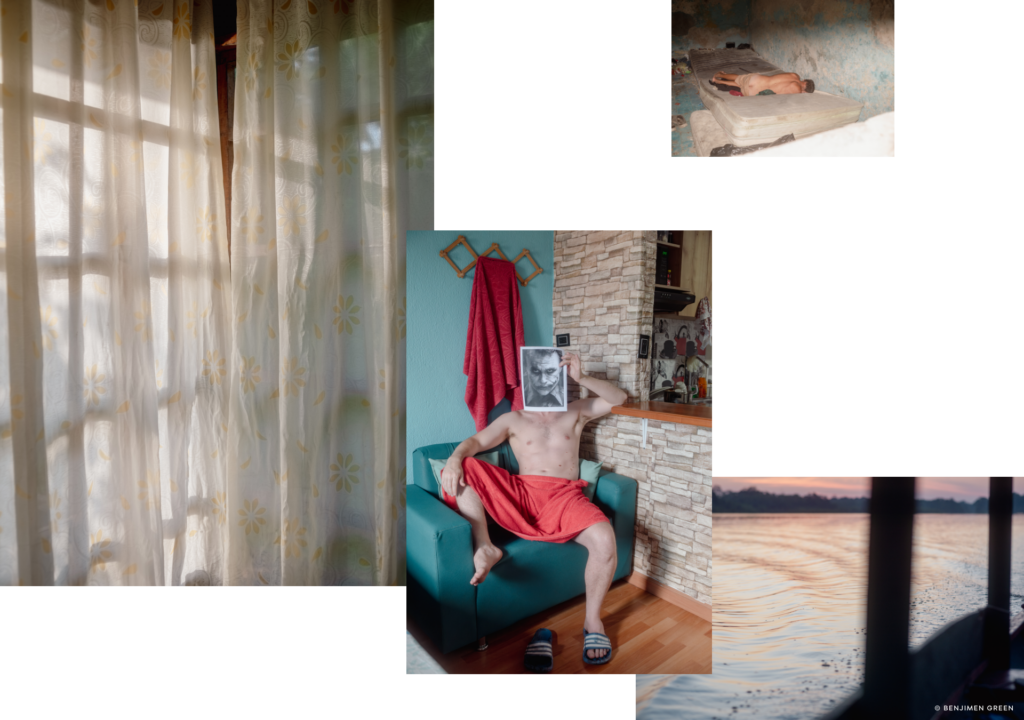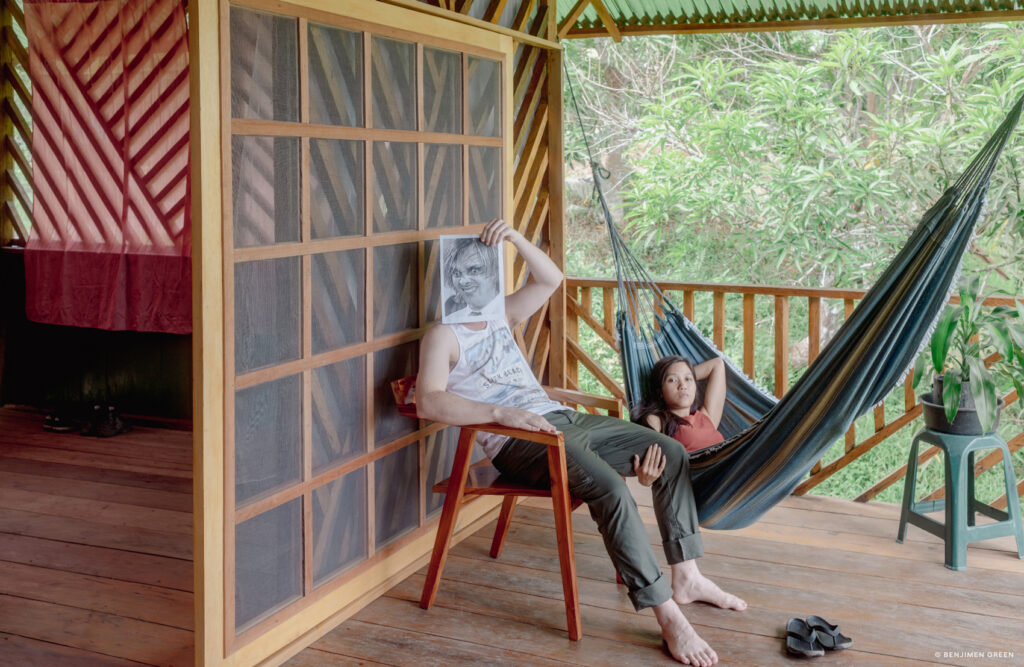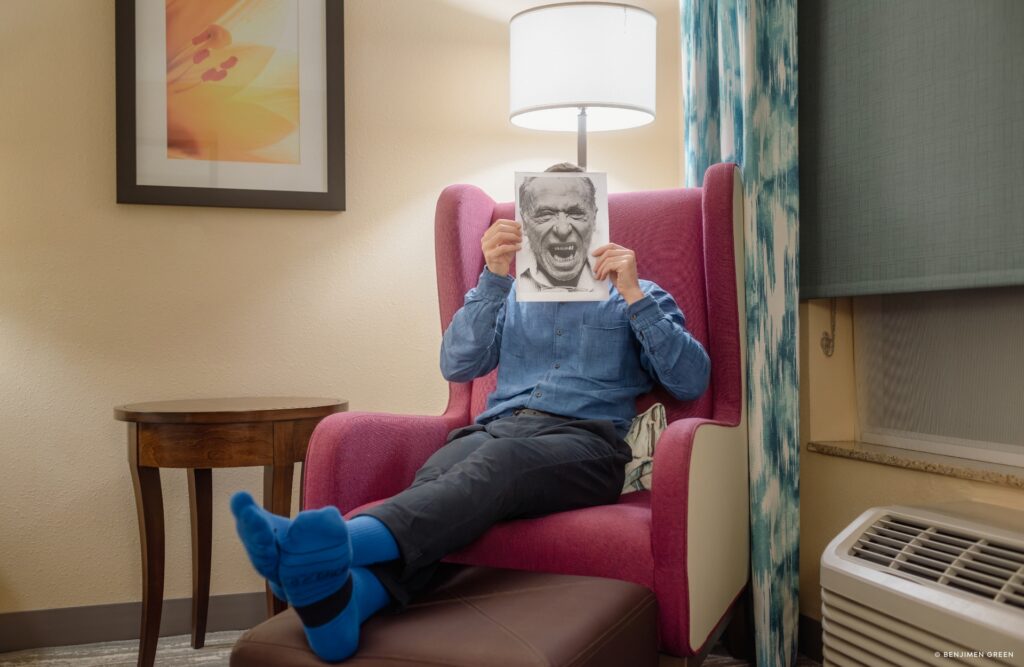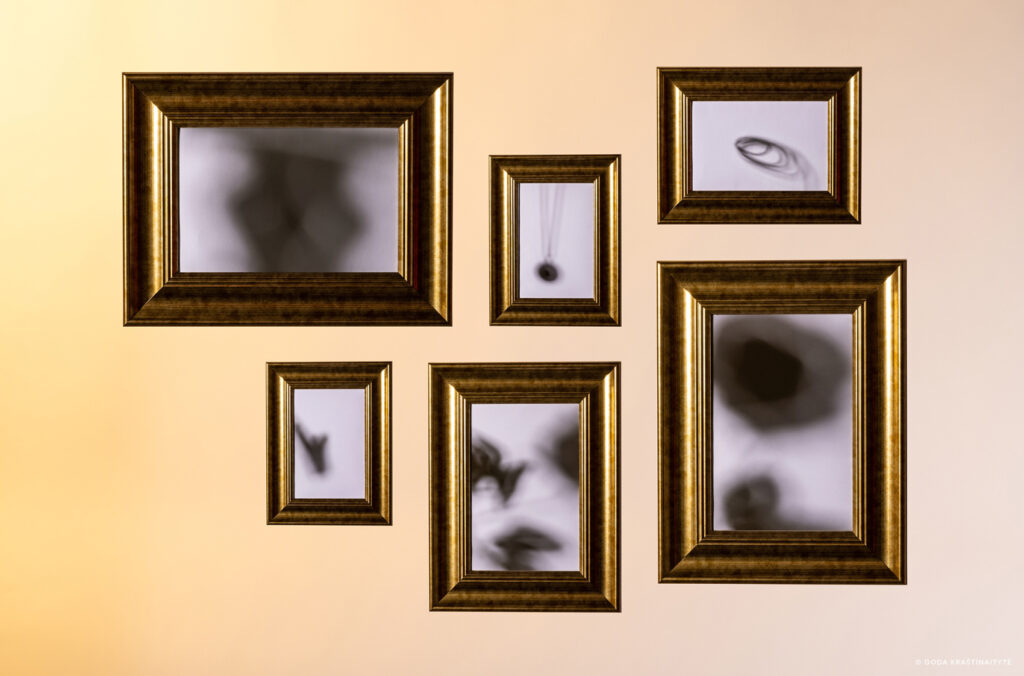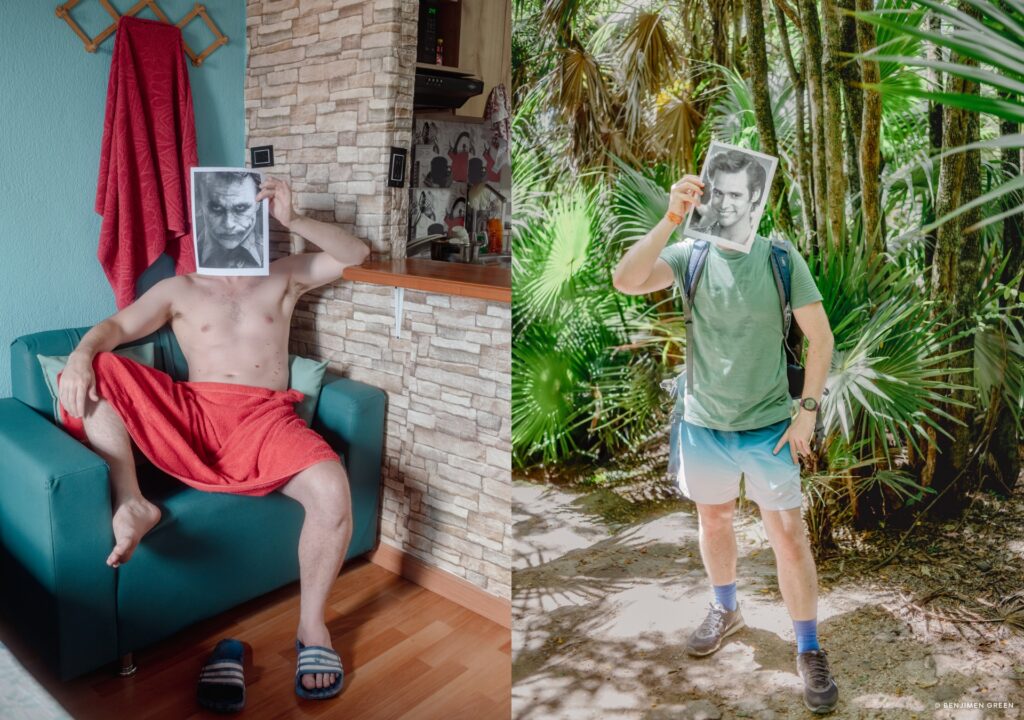
AI needs no introduction. It’s wildly powerful. It ramped quickly and flooded every corner of our lives, and yes, a few big tech companies behaved like hooligans along the way, which naturally created fear, dread, and the sense that something precious was slipping away.
But here’s the hard truth:AI has already been adopted.
Every single photographer we’ve spoken to in the past six months, and that’s hundreds of them, is using it.
Not as a philosophical debate. Not as an existential threat. Just as a tool to run their business. To build mood boards. To finish images. To keep up.
AI is reshaping photography at a pace we haven’t seen since the transition from film to digital.
And this is uncomfortable. Profoundly uncomfortable.
But if there’s anything we’ve learned from Patrick Fore, we need to “sit with the discomfort.”
So now the real question is:What future are we building toward?
Back to the Metal
When everything gets louder, the best photographers do something counterintuitive:
They go quieter.
They slow down.
They find community.
They create with more intention and honesty.
Because the world doesn’t need less photography. It needs more.
More authorship, more honesty, more voice, more vision, more truth, more reasons to pick up a camera and make something meaningful.
And here’s the thing: every great journey is easier with good company. People you trust, and people whose actions match their words.
We believe the same is true about the companies that build your tools. After all, companies are made up of people. Individuals with skills, intentions, and integrity. That’s why the “who” behind a tool matters just as much as the tool itself.
Where Capture One Stands
Yes, we’re a tech company.
And yes, we’ve built some of the most powerful AI tools in the industry.
Photographers are using them at a large scale: in 2025, more than 60,000 photographers created over 200 million images using Capture One’s AI-driven workflows.
But this doesn’t define who we are. That’s not how we measure success. Because we’re also a photography company.
At Capture One we hold each other accountable for celebrating and protecting the work photographers do. We support those fighting to make the work they know is important (thank you, Seth Stern, you’re an inspiration). We own more cameras than we have employees. We run monthly internal photography competitions, we print the winners and we hang them on our walls.
None of this is normal for a software company.
Good.
We don’t aim to be normal. We aim to be right for photography.
So, when others zig, we zag. Soon, we’re launching Negative Film Conversion. Analog, yes.
And you might ask, why film?
To us, the answer is simple: photographers deserve tools that respect the full spectrum of their craft. Past, present, and future.
We’re not following the hype cycle or chasing trends. We’re building for the long arc of photography.
The Future We’re Building Toward
A future where photography is once again the main character. Where the photographer is the author, not the algorithm.
A future where AI isn’t the headline. Where tools fade into the background.
A future where photographers have room to think, space to create, and full authorship over their work. Where clarity and control return to the people who actually do the work.
Capture One’s role in that future is clear as day:
Build tools for photography and the people who practice it.
Learn how combining masks unlocks more flexible editing in Capture One with almost infinite possibilities.
It’s finally here. The possibility of combining masks while keeping the flexibility of editing them individually. It was one of the highest-rated feature requests, and with the recent additions of many types of AI masks, it made sense to implement now, more than ever.
You can combine masks by adding, subtracting, or intersecting them. Intersect will make a mask in the overlapping area between the masks.
If you’re thinking to yourself, “cool, but I’m not sure I need it for my editing,” you’re in the right place. I will try to show some different examples that might spark not only interest in this feature but also inspire the creative possibilities it has unlocked.
So, what does it unlock exactly?
Imagine you have this image of a person in front of a waterfall, and you would like to lighten the waterfall to separate it from the foreground. You could brush it, create a Gradient, use AI Select, or many other options. However, they wouldn’t be as flexible as combining two masks.
What would you do instead?
First, create a Radial Gradient in approximately the position and size you want. You can always adjust it afterwards.
Once you have your first mask, click the new ‘Combine Masks’ button. Here you have three options for the type of combination. Add, Subtract, and Intersect. For this example, I used Subtract, as I want to subtract the foreground. For the type of mask, I used AI Select to manually select the foreground and person.
Pro tip: Masks created with AI Select will be more detailed if you zoom in before you click on the image.
The result will look like this in the Layers tool. You still have the two individual masks; the Radial Gradient and the foreground masked with AI Select. They are now nested under the new combined mask, Mask 1. You can edit each of the individual masks by selecting them and using masking tools.
Now you can freely move or resize the Radial Gradient behind the foreground, getting exactly the look you’re going for. By applying some brightness, levels, and clarity, the waterfall truly stands out.
Gradient on the background
Adding a gradient to the background on this image makes the model stand out more.
This one is slightly simpler. First, you add a Linear Gradient. Then you have two options to achieve the same; you can either Intersect with the Background or Subtract the Subject. Both will give the same result, allowing you to freely move the Gradient around behind the subject to achieve the look you want.
Directional light
On this image, you can create an interesting contrast on the background, drawing attention to the center of the image.
This one is a bit more complicated as it consists of three masks. First, you add a Linear Gradient from one corner. Then you use Add in the Combine Masks menu to add a second Linear Gradient from the other corner. As the final step, you Intersect with the Background to make sure the mask does not overlap with the subject.
What’s brilliant about masks in Capture One is that you can copy them across other images, and their dynamic properties remain. Copying the Layers to other images gives you the same dramatic lighting change in a few seconds and lets you control the combined masks flexibly on each image.
Including the reflection
Adding contrast to this image by playing with the light is much easier with a combined mask. To make sure the edit looks natural, the reflection needs to be included.
You might have guessed the steps to take by now. To achieve this, you first create a Radial Gradient. Since the beautiful mosque and reflection are a little complex, the regular Subject Mask doesn’t quite catch it all, so you need to Subtract using AI Select and manually select the mosque and trees, also in the reflection.
When everything is selected with AI Select, you should end up with a flexible Radial Gradient you can move around behind the mosque, also including the reflection. Here, it’s also shown as a greyscale mask (Option/Alt + M) to easily visualize the mask.
Adjusting light, contrast, white balance, and clarity creates a nice separation between the mosque and the background.
Restricting a manual brush
Did you know that Capture One has built-in Dodge and Burn brushes? They are part of the Style Brushes. For this image, it’s easy to gently darken the edge of the face of the model to enhance the depth without affecting the background.
First, you select the ‘Burn (darken)’ Style Brush and make a brush stroke on the edge of the face of the model. This automatically creates a new Layer. Now you intersect this mask with the ‘People’ mask option. Here you select ‘Face Skin’, ‘Body Skin’ and ‘Hair’. Now your mask is restricted to only the skin and hair of the model, and you can brush around the edge without affecting background.
What about Luma Range?
You might have noticed that the Combine Masks button has replaced the Luma Range button. This is because a Luma Range applied to a Layer is already a combined mask. You need to get used to a slightly different workflow. To get the result you’re used to from older versions, you need to use ‘Intersect’ when combining with a Luma Range.
Now you just have Add and Subtract as well in case your mask needs something different.
Remember that you can always add custom shortcuts for each available operation. Just open the Shortcut Manager (Edit > Keyboard Shortcuts > Edit Keyboard Shortcuts…) and search for, for example, ‘luma’, for example.
What about the 16 Layer limit?
Capture One currently limits you to 16 Layers per image. You don’t need to worry about Combined Masks taking up too many slots, because no matter how many masks you combine, the final mask only counts as one Layer.
Almost infinite possibilities
After these options were implemented in Capture One, I’ve discovered masking options that I wouldn’t have thought of before. It makes me think about editing and improving my images in a new way, and it’s difficult to imagine advanced editing in Capture One without it.
I hope these examples give you some inspiration for what you can achieve and how to start playing with combining masks.
Fashion and beauty photographer Sarah Silvermight be best known for her bold, playful, and colorful visuals, but behind every image lies a bulletproof workflow and process that make it all possible.For Sarah, creativity doesn’t come from chaos.It’s built on structure. In this quick Q&A, she shares how preparation fuels her imagination, the systems that keep her shoots running smoothly, and the tools she relies on from concept to final export.
What’s essential when prepping for a shoot?
There’s so much information coming at me from all sides while prepping a shoot, so filing everything properly for easy retrieval is a MUST. I have pre-made digital folders, shoot sessions, job checklists/tasks, and naming conventions that keep me on track and consistent for EVERY project I undertake. I find that if all the pieces are in the right place, it opens my mind to maximum creativity.
Do you have any post-production advice for us?
Post means so much more to me than just retouching. It also includes proper file storage. When backing up files after a shoot, I use on-site RAIDS to upload my Capture One shoot sessions, and multiple off-site backups for redundancy (you never know when there will be a flood in the studio). So I highly recommend multiple backups in multiple locations!
Also, a quick tip for retouching: When we go through retouching rounds in Photoshop, I always refer back to my original base image (R0) to see how far the image has come and where I’m going; otherwise, it’s really easy to overdo it. I will often “brush back” details that were removed from the original so I can keep retouching and make it feel more natural rather than overly airbrushed.
How do you balance creativity and efficiency on set?
Quick Answer: A time-tested workflow that I have developed over the years through tough lessons!
Long answer: Over the years, I have developed a workflow that helps me avoid making the same mistake twice.
The second a shoot comes in, my workflow begins with meticulous organization. When you’re organized, you can move quickly and address the most common questions/complications that may arise during a shoot. This allows space for creativity to take over, because you’re not busy trying to problem-solve for a million questions on set that you could have asked before the shoot.
My organization also trickles down to my team, so everyone understands where they need to be and what needs to be done to make a shoot go smoothly. Ultimately, this streamlines our entire process, allowing us to focus on our creativity.
Of course, there will always be challenges to be solved on set, so it’s also important to be able to wear many hats and be able to pivot quickly into problem-solving mode.
Can you share a favorite shoot and what made it stand out?
Gosh, this is a really tough question. I am lucky to work with such amazingly talented teams that are always pushing to create stunning visuals. I can honestly say that every shoot is my favorite because it’s a blank slate where I can be inspired and inspire others to create something extraordinary that we can all be proud of.
What’s your strategy for managing time on set?
I built a spreadsheet schedule that shows everybody’s role and where they are on the shoot day in 5-minute increments. I know it’s a bit detailed, but it’s my north star during a shoot and helps make sure everybody’s time is 100% accounted for.
How do you collaborate with your team?
I learned early on in my career that I thrive in a collaborative space. I work with amazing artists who bring so much to my creative process. The best feeling in the world is when the entire team yells out “omg” when a killer shot pops up in Capture One. It’s as if we are all synced into the creative flow, and it just feels so magical.
Where does software fit into your workflow?
Capture One is ever-present throughout my entire shoot process – from prep to post. We customize sessions in advance of the shoot and refer back to them throughout post-production to export and re-export as needed. For me, my favorite features are:
Multiple Compare Variants
Export as EIP from the processing menu
All my custom keyboard shortcuts – these help me move at the speed of light! I am especially obsessed with filtering when editing.
What’s your top advice for building a solid workflow and a distinct voice?
When it comes to workflow, it’s super important to learn from your mistakes. I am always refining my workflow to ensure that I never make the same mistake twice.
As for finding a distinct voice, I strongly believe you should draw on what you love. If you can combine the things that you are most passionate about, you will create with heart, and, in the end, that heart is what is most unique, because no one else has the same worldview as you.
Mobile photography workflows are quickly becoming the norm, and our mobile app is evolving to match.
With recent updates, it functions as both an independent solution and a seamless bridge between your camera, iPhone, iPad, and desktop setup.
In this guide, we’ll walk through the whole journey. From setting up storage and importing, to tethered shooting, reviewing, editing, retouching, and exporting.
Capture One mobile now gives you everything you need to work your way:
– Standalone power to shoot, edit, retouch, and export on the go.
– Smooth integration into your desktop workflow when you need more.
– Flexible storage with external drive support.
– Assisted tools like People Masking and Retouch Faces.
– Styles and Cloud Sync so your looks and edits follow you everywhere.
– Built-in Capture One Live for easy, browser-based collaboration and real-time feedback.
These features enable you to access the full benefits of our software from anywhere. It’s now easier than ever to fit mobile work into your professional workflow.
When you open Capture One mobile, it starts with a default Catalog, but you can also create Sessions.
These two document types suit different workflows, and the main distinction lies in how they handle the database.
– Sessions are flexible folder-based projects. Because they don’t depend heavily on a database file, they’re portable and easy to manage. In a Session, all your images live in a simple, customizable folder structure, with preview and adjustment files stored alongside them. Sessions are ideal for quick shoots, work on external drives, or projects you plan to share with a desktop workflow.
– Catalogs store your edits, previews, and images together through a central database. This makes it easy to search and filter across your entire library, but you can’t use a Catalog without launching Capture One. Organization in Catalogs is virtual: the folder structure is automated and managed by the database, not by you. To protect your work, Catalogs require regular backups of the database file. They’re best for long-term libraries where you want everything unified in one place.
Working with External Storage
With Capture One mobile 3.0 came advanced external drive support. You can now create Sessions and Catalogs directly on an external drive and work with files stored there. This also allows you to shoot straight to external storage when tethering or move documents between internal and external storage, making your workflow much more flexible.
For example, you can set up a Session on an external drive in mobile and shoot an entire run-and-gun session without being tied to a desktop. Wired tethering gives you speed and reliability, while Capture One features like AI retouching, Styles, and other automated adjustments apply to every incoming shot with Next Capture Adjustments. At the same time, reviewers can follow along through Capture One Live, rating, tagging, and commenting on images as they appear. Once the shoot is done, simply plug the drive into your computer and continue working with the exact same files, with all your edits carrying over seamlessly. In practice, this means you get the full benefits of Capture One on the go, and it’s easier than ever to slot mobile into your desktop workflow.
Importing Images
Capture One mobile gives you several options for bringing in your images:
– Photos app: Access your entire Photos library. – Files app: Pull from internal device memory, cloud locations, or external devices such as USB drives and SD cards connected to your iPad or iPhone. – Connected Camera: Import directly from your camera using a cable or WiFi.
Starting with Capture One mobile 2.5, you can choose whether to copy files into your Catalog or keep them in their original location.
Shooting Tethered
Capture One mobile is built for shooting tethered.
Connect your camera to your device via cable or WiFi to shoot directly into Capture One mobile. Enable Next Capture Adjustments to apply edits as you go, rate shots on the fly, and manage capture folders when working in Sessions.
Reviewing images and Capture One Live
You can review your photos in-app with ratings and tags, and instantly share them through Capture One Live, which is built right into the mobile app.
Capture One Live lets you generate a link that peers or clients can open in any web browser, no downloads or accounts required. They can view, rate, tag, and comment on individual photos in real time. You can control access by inviting people via email for full collaboration, or by creating a public link with limited access. All at the same time. This flexibility makes it easy to adapt to different projects. By using their own devices, your team and clients can follow the shoot on location without bulky equipment, while providing real-time feedback as you capture each image.
Editing Images
With Capture One mobile you get color editing, exposure control, sharpening, and all the essentials of the full Capture One desktop engine, right in the palm of your hand. Whether you’re polishing a few selects or editing an entire session, you can handle professional work on the go.
AI Masking
Capture One mobile 2.7 introduced AI Masking for quickly isolating distinct subjects like people or objects, with tools such as Select Subject, Tap to Select, and Draw to Select. In version 2.8, People Masking was added, letting you target areas like body skin, face skin, eyebrows, lips, hair, pupil and iris, and sclera. The Separate Masks option places each People Masking feature on its own layer.
AI Retouching
Retouch Faces, first introduced on desktop in version 16.6.0, became available in Capture One mobile starting with version 3.0. It brings AI-driven, natural-looking retouching directly to your mobile device. Features like Blemish Removal, Dark Circle reduction, Even Skin, and Contouring make quick, natural adjustments that align with your desktop workflow.
The Retouch Faces Tool automatically detects faces in an image. You can then choose to retouch all detected faces at once, or focus on a single face for more precise edits. You can also create a Style or combine it with Next Capture Adjustments for automated batch retouching as you shoot.
Batch Editing and Next Capture Adjustments
Apply adjustments across multiple files or automatically as you shoot tethered.
Styles and Cloud Settings
If certain tools or sliders you rely on aren’t yet exposed on mobile, you can still create a Style on desktop and share it with Cloud Settings. That Style becomes available on all your devices. Apply it on mobile and Capture One will honor all the edits, even if those are not available yet on mobile, thanks to the full Capture One engine running under the hood.
Moving between mobile and desktop
Your workflow doesn’t need to stay tied to one device. With updates introduced in Capture One mobile 3.0, you can branch out at any stage, making it easy to start anywhere and finish anywhere.
– Start on mobile: Shoot and edit directly on your device, then transfer your Session to desktop through an external drive or the cloud to continue with advanced adjustments.
– Start on desktop: Tether and edit on desktop, then move the Session onto external storage and plug it into your mobile device for editing and exporting on the go.
Exporting images
Once your edits are complete, exporting is straightforward and flexible.
– Export images in multiple formats, including JPEG, TIFF, Originals (RAW), and EIP (RAW + adjustments sidecar files). You can control scale, quality, bit depth, and compression, and even add text watermarks to protect your work.
– Save exports directly to your device, cloud services, or an external drive.
– Archive Sessions and Catalogs through Files for reliable longtermlong-term storage.
Your images remain portable and ready, whether you need to deliver them, back them up, or continue working on another device.
Try Capture One mobile
Capture One mobile is part of All in One, a bundle that delivers the complete workflow solution within Capture One. You get pro tools on desktop, mobile apps, Cloud Settings that sync across devices, realtime collaboration with Capture One Live, and priority support.